Session Expired
As a matter of basic system security, each time you log in to Volgistics a unique session is created. This authenticates your connection to the Volgistics servers for a period of time to create a secure environment. Your sessions expire automatically after approximately 60 minutes of inactivity. This is an industry-standard safeguard to prevent unauthorized people from accessing information or making changes if they find your unattended computer or device.
Sessions can also be orphaned in which case you'll need to log in again and you'll see a Session in Use message. There are also cases where a Page Not Found or Webpage Expired message may appear. This help topic provides details about each situation and the best practices for uninterrupted use of Volgistics. You can click a link below to go directly to a section of the help topic:
Session Expired Due to Inactivity
Volgistics sessions expire after a period of approximately 60 minutes of inactivity to prevent a security vulnerability. This is a requirement for many security standards so there is not a way to disable this feature or set an account to permit a longer period of inactivity.
If you know you'll be be away from the system for more than a few minutes, we recommend saving the page you're working on and exiting. This will save your work and prevent anyone who finds your unattended work station from viewing or changing information in your account.
While the feature can not be disabled, when no activity takes place and the session has 10 minutes remaining, a warning dialog with a timer appears and the navigation options on the page are disabled. If you are still working, simply click the Continue working button to reset the timer.
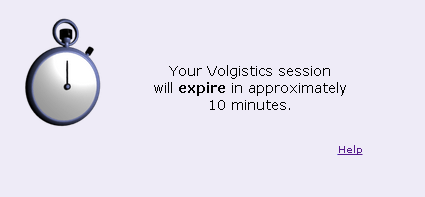
If the Continue working button is not clicked during the 10-minute period, the system will end the session and close the page the operator was on.
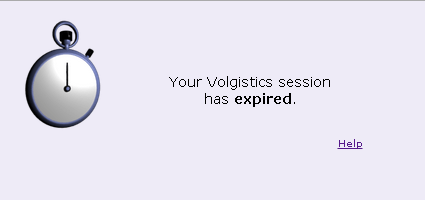
I didn't receive a warning but my session expired!
In most cases, if you do not see the alert before your session expires it means it expired because of one of the problems listed in the Session in Use section below. Or, you may be seeing the Page Not Found or Webpage Expired message instead of the Session Expired message.
In rare cases, it could be the alerts are disabled for your System Operator record. In this case, an Administrator for the account can turn them back on by using the This operator is allowed to section on the System Operator Settings page.
Session in Use
Sessions can also be orphaned in which case you may need to log in again to start a new session. With an orphaned session, you will not see a warning dialog with an option to extend the session. Instead, the Session Expired message shown above will show when you click a menu item or button in Volgistics. There are two reasons sessions get orphaned.
Shared Login Credentials
The first reason a session could be orphaned is when two System Operators share login credentials (account number, email address, and password). Because there can only be one session at a time for each operator, the second person attempting to login will see a Session in Use message.
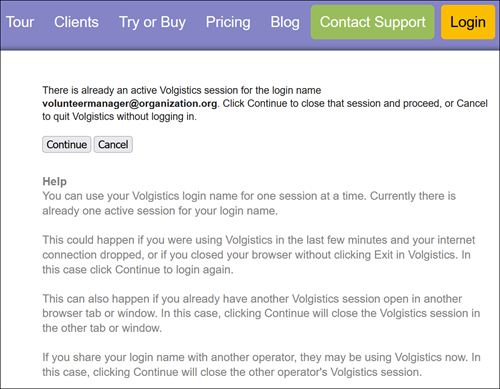
If they click Continue, they will end the session for the person who is already logged in and that person will see the Session Expired page.
Unsupported Navigation
Another reason sessions can be orphaned is navigating in Volgistics using controls that are not a part of Volgistics. Volgistics is currently only supported in one web browser tab or window, and only the buttons and menu items in Volgistics should be used for moving between pages. Some tips to avoid orphaned sessions are:
- Do not use your web browser's Back, Forward, or Refresh buttons
- Do not open Volgistics in more than one web browser tab or window
- Do not bookmark Volgistics pages inside of your account and return to them later
If the session is orphaned, you'll need to log in again, and you will see the Session in Use message shown above because technically your previous session is still active--it's just not accessible. In this case, you'll need to click the Continue button to end the previous session and start a new one.
Page Not Found or Webpage Expired
The actions listed above in the Unsupported Navigation section will not always completely orphan the operator's session. It depends on what page you're on and what navigation was used. In these cases, instead of a Session Expired message the operator may see a Page Not Found or Webpage Expired message.
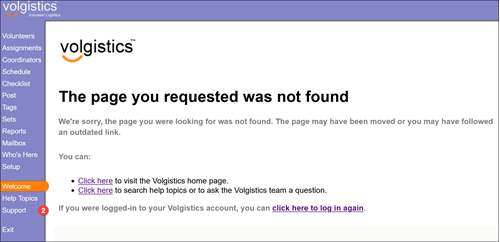
If you get a Page Not Found or Webpage Expired message, you may not need to log in again. You can sometimes just select a new item from the Volgistics menu to continue working in the system. If you're not able to keep working after selecting a new page, then you'll need to log in again to continue to use Volgistics.